CGE GUI
Information about accessing CGE with the front end
- Executing queries
- Executing updates
- Creating checkpoints on a database
- Using advanced options for viewing and editing server configurations, as well as for performing server NVP and logging configuration changes.
http://machine:3756/dataset/, where machine is the host name of the machine where the web server is hosted. Multiple instances of CGE can be launched on the same node at different ports.$ ssh machine -L 3756:hostname:3756In the above example, machine is the machine running CGE’s web server. The first
3756 is the local host port to connect to, whereas hostname:3756 is the remote reference.The results format received in the browser is dictated by the HTTP Accept header that your browser sends (or conversely that your programmatic HTTP client sends). The 'Force text/plain as the response Content' option controls the Content-Type header that the front end responds with, which affects how the browser interprets the response. Depending on the browser if this option is disabled (the default) then this might mean that it downloads/offers to save the response to a file rather than displaying it in the browser, enabling the aforementioned option changes the response Content-Type to always be text/plain regardless of what format the front end actually outputs which forces the browser to display the response in the browser itself. If it is needed to display the results in a different format, customise the HTTP Accept header accordingly, most browsers have some means to configure this. For example in Firefox navigate to About>Config. Click through the warning if it appears and then search for accept and edit the value of the network.http.accept.default setting to add the desired content types. The closest thing to plain text that the front end will produce is text/tab-separated-values. Most browsers include application/xml in their default accept header, which mean you will typically get SPARQL XML results by default (or RDF/XML if it were a CONSTRUCT query).
Logging on to the CGE UI
The CGE UI can then be accessed by pointing the browser at: http://localhost:3756/dataset/.
- When configured for forms authentication you will see you the following screen:

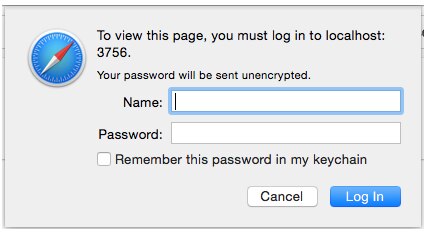
The exact format of this dialogue will depend upon the browser you're using, this example is from Safari. Either way the user will need to enter their credentials in order to log in.
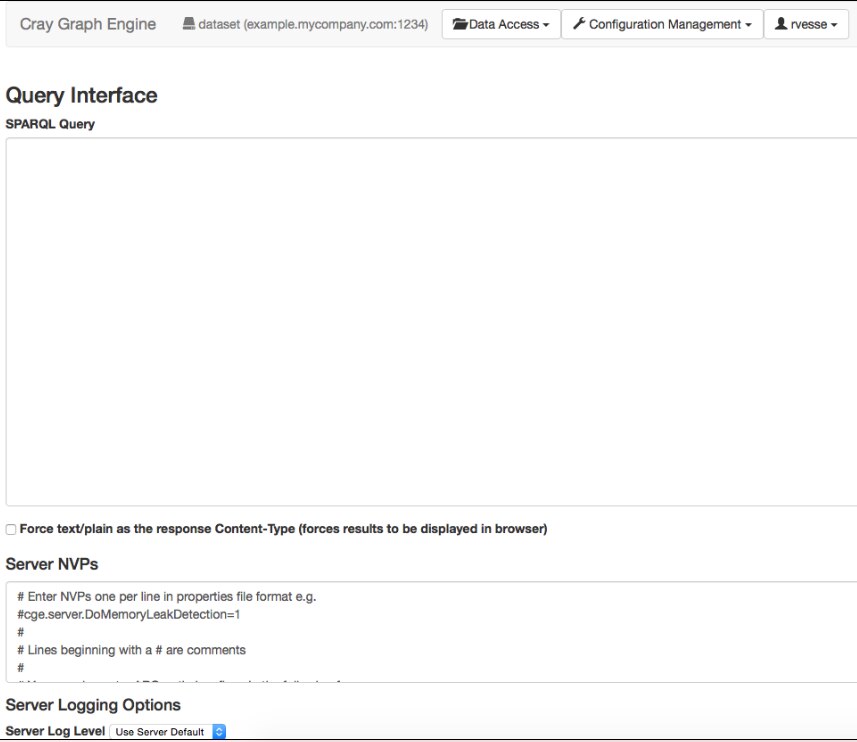

This provides a number of useful pieces of information. Firstly it indicates the underlying database server that the front end will be connecting to. In this example the underlying database server is on example.mycompany.com:1234
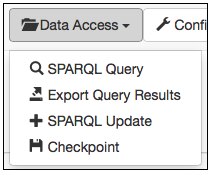
- SPARQL Query enables making queries
- Export Query Results allows you to make a query but only returns meta data about where the results have been saved to disk
- SPARQL Update enables making updates
- Checkpoint enables checkpointing the database to disk
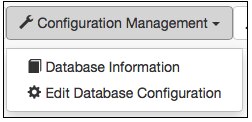
- Database Information provides access to the current configuration of the server
- Edit Database Configuration allows you to edit that configuration