Edit Server Configurations Using the CGE UI
Procedure and guidelines for modifying the CGE server's configuration settings using the CGE front end.
CAUTION: Modifying server configuration settings can adversely affect performance, especially if it is changed to point to a relatively slow file system. Therefore, it is recommended not to change server configuration settings, unless specifically instructed to do so by a Cray representative in order to gather information for diagnosing issues.
- Optional: Log on to the CGE UI by pointing a browser at
http://machine-login1:3756/login, entering credentials and then selecting the Login button.This step is optional, depending on how the interface has been configured
- Access the CGE Edit Server Configuration interface, by using one of the following mechanisms:
- Point a browser at
http://machine:3756/dataset/config, where machine is the machine running CGE’s web server. - Select Edit Database Configuration from the Configuration Management drop down on the CGE UI.
Figure: Editing Server Configurations 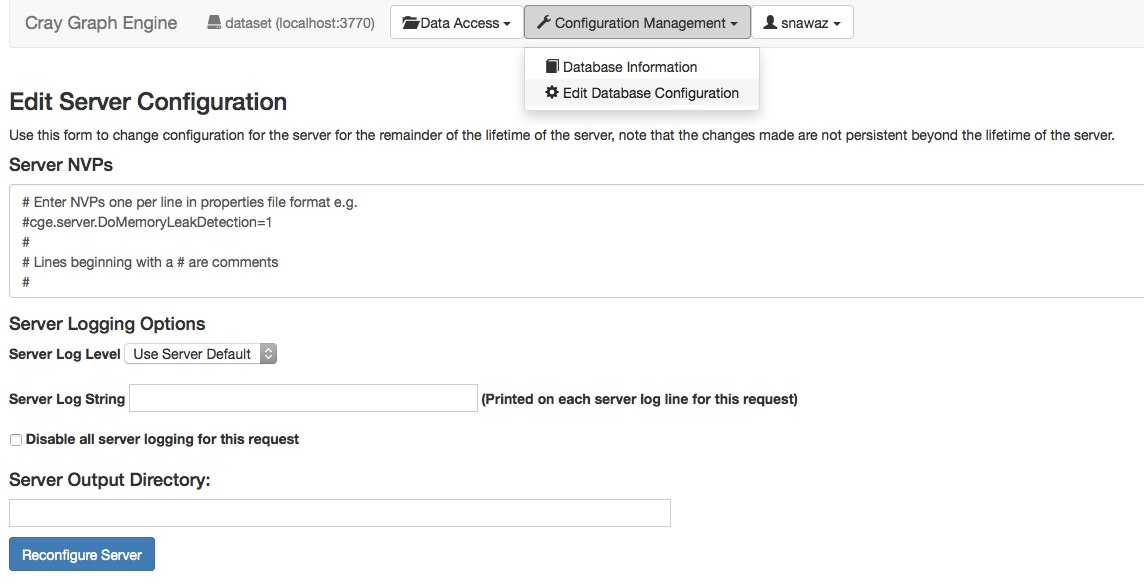
- Point a browser at