Install GPU in Left GPU Sled

Install the left GPU in a CS-Storm chassis (GPUs in PCI slot groups 2 and 3).

  • GPU/Coprocessor:
    • NVIDIA GPUs: K40, K80, M40, Pascal
    • Xeon Phi Coprocessors: 5110, 7120
  • Time: 20 minutes
  • Tools: Phillips screwdriver
  • The server is removed from the rack and is placed on a stable ESD-safe work surface.
  • The left GPU sled PCI buses connect to motherboard PCI slots 2 and 3 through interface printed circuit boards (IFBs).
  • Important: NVIDIA M40 and Pascal GP100 GPUs do not fit into the original (first generation) CS-Storm GPU tray assemblies. New (second generation) trays are available for NVIDIA M40 and Pascal GP100 GPUs. NVIDIA K40 and K80 GPUs also fit into the new tray. The new tray has very small differences in some dimensions, and there is a small difference in size between the GPU guides (white plastic) at each end of the trays. K40 and K80 GPUs fit in both original and new trays, but M40 and Pascal GP100 GPUs must use the new tray. Both trays fit into the right and left GPU sleds.
    • Original (first generation) GPU tray - 101154601 K40 / 101192400 K80
    • New (second generation) GPU tray - 101154602 K40 / 101192401 K80/M40/PASCAL
  1. Remove the replacement GPU PCI slot hardware.
    • To install an NVIDIA® GPU, go to step2 .
    • To install an Intel® MIC GPU, go to step 12.

Install NVIDIA GPU

  1. Remove any protective clear-plastic film that was installed by the manufacturer.
  2. Remove the manufacturer PCI expansion slot bracket (3 screws on the front and 1 on the bottom). Keep the screws.
  3. Insert the GPU in the tray and gently push the GPU so it is flush with the end of the tray, opposite the power cables.
  4. Attach the GPU to that end of the tray with 2 screws.
  5. Attach the other end of the GPU to the small bracket (near the power connector) with 2 screws.
    Make sure the two holes are aligned to prevent the screws from cross-threading.
  6. Connect the power cable connector(s) to the GPU.
    There could be one or two connectors, depending on the NVIDIA GPU model.
  7. Use a cable tie to secure the power cable to the metal hold-down loop in the tray. This is needed so the power cords do not obstruct airflow.
  8. Slide the tray into the GPU sled. Align the guide pins (metal or white plastic) at each end of the tray with the groove in each side of the GPU sled.
  9. Secure the GPU tray to the GPU sled (2 screws).
    Figure: Install GPU in Tray
  10. Continue at step 21 to install the GPU sled in the chassis.

Install MIC GPU

  1. Remove the manufacturer PCI expansion slot bracket (4 screws).
    Refer to Figure 1 for this Step and the remaining Steps.
  2. Remove any clear protective film from the MIC cover.
  3. Align the holes on the mounting bracket with the holes on the side of the MIC GPU. Install two snap rivets to secure the bracket.
  4. Before placing the MIC into the tray, connect the two power connectors to the GPU.
  5. Insert the MIC GPU in the tray. Make sure the guide studs on the PCI side of the tray align with the holes in the MIC housing.
  6. Push the MIC towards the PCI side of the tray until the mounting holes on the bracket align with the standoffs in the tray.
  7. Install and tighten 2 screws to secure the bracket and GPU to the tray.
  8. Insert the tray into the GPU sled. Make sure the guide pins on each end of the tray align to the guide rails on the inside of the sled housing.
  9. Push the handles down and slowly slide the tray into the sled.
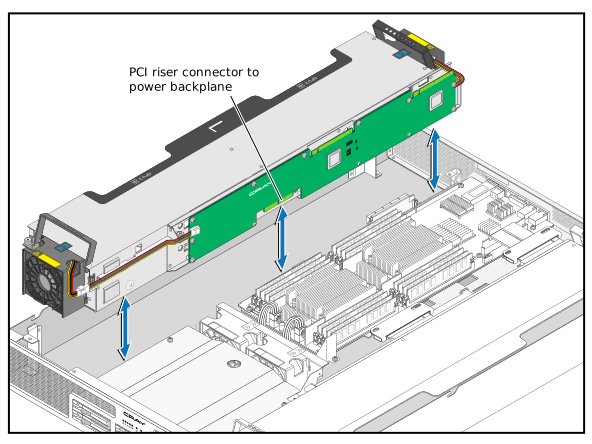
  10. Grasp the fan handles and position the GPU sled in the chassis so that the power connector on the PCI riser aligns with the power backplane connector.
    Figure: Install Left GPU Sled
  11. Tighten 4 captive screws to secure the GPU sled to the chassis.
  12. Fold the fan handles down flush with top of the chassis.
  13. Connect the IFBs from slot 2 and slot 3 to the PCI riser.
    Figure: Install CS-Storm IFBs
  14. Install the server cover.