Describes how to create a Hello World example in CGE
This procedure requires CGE to be installed on the system.
This procedure can be used to get started with using CGE and can be considered as a "Hello World" program. In this procedure, a simple query is executed on a small RDF triples database. This procedure provides instructions for executing queries and viewing the results via the CGE CLI and the front end.
Use the cge-cli help command to view a full range of CGE CLI commands. Use the –h option of any command to view detailed help information about any specific command.
For a full set of CGE features, built in functions, graph algorithms, CGE API, troubleshooting and logging information, review the Cray Graph Engine (CGE) Users guide at https://pubs.cray.com.
Authentication Setup
Set up SSH keys.
$ ssh localhost
If the preceding command allows re-logging into the login node without a password, then the SSH keys are set up sufficiently for using CGE. If the previous command fails and there are existing SSH keys that do not use pass-phrases or have the ssh-agent defined, then try the following
$ cat ~/.ssh/id_*.pub >> ~/.ssh/authorized_keys
At this point, if it is possible to run the aforementioned text and to re-log in to the login node without using a password, pass-phrase, or ssh-agent, then this step can be considered to be complete. On the other hand, if the aforementioned text fails, there are no SSH keys defined yet. The following commands can be used to set them up.
CAUTION: Before executing the following commands, ensure that there are no existing SSH keys because this will overwrite any existing keys. Also, do not specify a pass-phrase when running ssh-keygen
Create a file named dataset.nt and store it in a directory that has been selected or created for it.
This directory must be a new directory and contain at least one of the following if the data set is being built for the first time with CGE (only one of these will actually be used):
dataset.nt - This file contains triples and must be named dataset.nt
dataset.nq - This file contains quads and must be named dataset.nq
graph.info - This file contains a list of pathnames or URLs to files containing triples or quads and must be named graph.info.
This is the original, human readable representation of the database. The following example data, which should be added to dataset.nt, can be used for this procedure.
For more information about the cge-launch command and its parameters, see the cge-launch man page.
The server will output a few pages of log messages as it starts up and converts the database to its internal representation. When it finishes, the system will display a message similar to the following:
Serving queries on nid00057 16702
Query Execution via CGE CLI
Execute a query using the CGE CLI.
$ cge-cli query example.rq
0 [main] WARN com.cray.cge.cli.CgeCli  - User data hiding is enabled, logs will obscure/omit user data.  Set cge.server.RevealUserDataInLogs=1 in the in-scope cge.properties file to disable this behaviour.
5 [main] INFO com.cray.cge.cli.commands.queries.QueryCommand  - Received 1 queries to execute
13 [main] INFO com.cray.cge.cli.commands.queries.QueryCommand  - Running Query 1 of 1
0              6              123         0              file:///mnt/central/user/results/queryResults.2017-07-04T13.59.57Z000.18232.tsv
688 [main] INFO com.cray.cge.cli.commands.queries.QueryCommand  - Query 1 of 1 succeeded
In the preceding example, the example.rq file contains the following query:
List the contents of the results directory and review the contents of the output file to verify that the query’s results are stored in the output directory specified in the cge-launch command.
Launch the CGE front end in another terminal window.
$ cge-cli fe --ping
The --ping option in the preceding example is used to verify that the database can be connected to immediately upon launch and that any failure is seen immediately. Not doing so may delay and hide failures. If the ping operation does not succeed, and it is certain that the user executing this command is the only user running CGE, and that everything else is set up correctly, the user should go back to the first step and make sure that the SSH keys are set up right. The system may prompt to trust the host key when the fe command is run for the first time.
Alternatively, the following command can be used to have the web server continue running in the background with its logs redirected, even if disconnected from the terminal session:
$ nohup cge-cli fe > web-server.log 2>&1 &
Point a browser at http://loginNode:3756 to launch web UI, where loginNode is the name of the login node the front end is launched from.
The CGE SPARQL protocol server listens at port 3756, which is the default port ID.
When the CGE front end has been launched, a message similar to the following will be returned on the command-line:
49 [main] INFO com.cray.cge.cli.commands.sparql.ServerCommand -
CGE SPARQL Protocol Server has started and is ready to accept HTTP
requests on localhost:3756
Query Execution via the CGE Front End
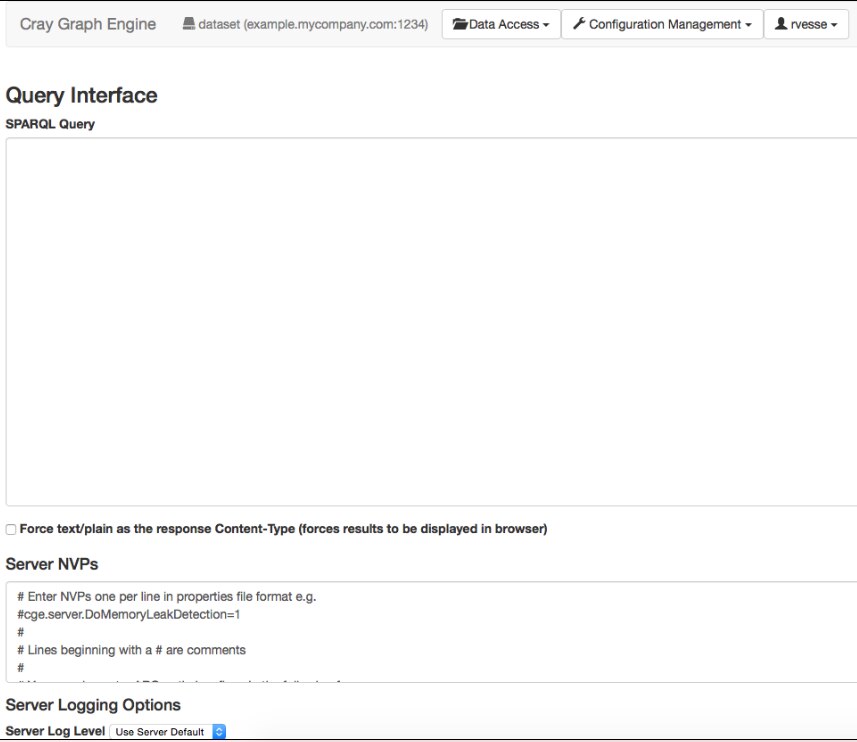
Execute a query against the dataset created by typing in the query and selecting the Run Query button.
Figure: CGE Query Interface
The following example query will match the data and example output shown in the next step:
After the query finishes executing, the output file containing the query's results will be stored in the output directory that was specified in the cge-launch command.
CGE Front End Termination
Quit the terminal using the CTRL+C keyboard shortcut.
CGE Server Shutdown
Execute the following command to halt the CGE server, if needed.
 The following example query will match the data and example output shown in the next step: