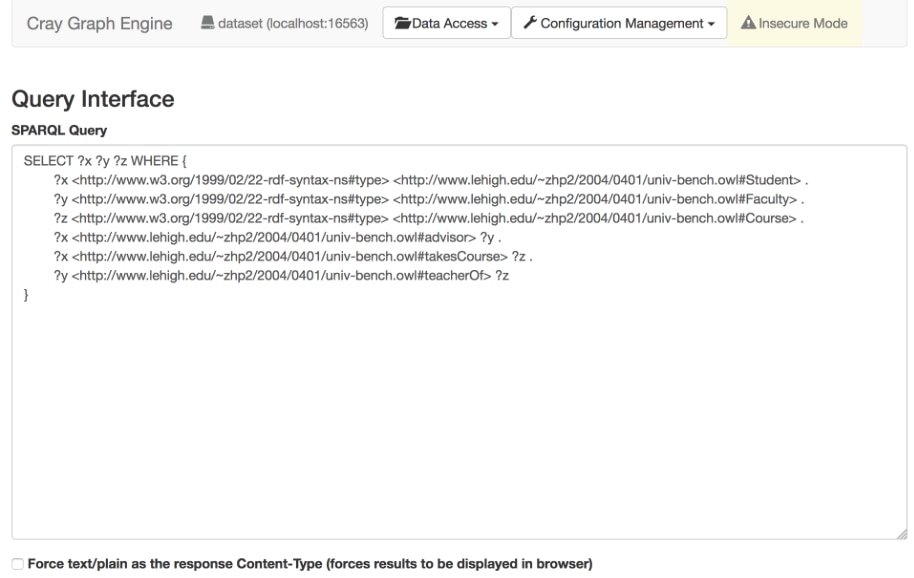
If a user has submitted a query using the CGE web UI (which is launched via the cge-cli fe command), the sytsem will present a web-browser similar to the following:Figure: CGE Query Submitted Using the UI
Terminate a CGE query using one of the following options
Use the server.QueryTimeout NVP to cancel the query.
This option can be used for cancelling a query by setting a timeout on a query by editing the NVPs to be sent with the query.
Scroll down to the Server NVPs and set the value of server.QueryTimeout to the number of seconds the query should to be allowed to run before it times out. Figure: Change the Query Timeout Value
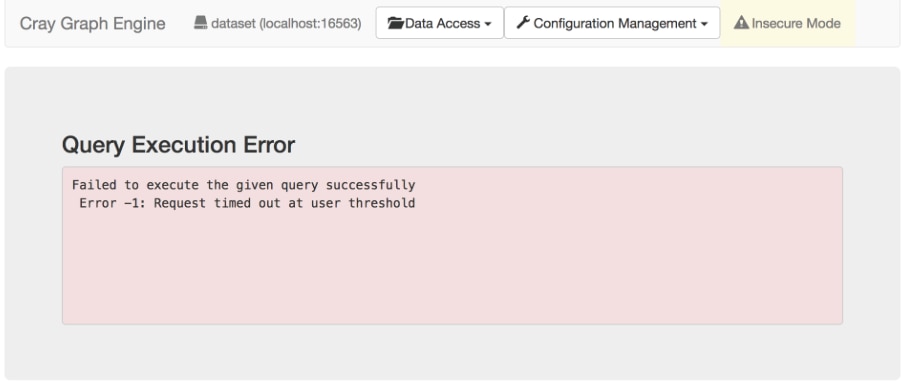
When a query runs more than that number of seconds specified via the server.QueryTimeout paramter , it will time-out, in which case, the UI will look similar to the following:Figure: CGE Query Execution Error Pop Up
Canel a query using the Active DataBase Connections screen.
This option can be used for cancelling a query if a timeout was not specified via the server.QueryTimeout parameter.
Select Configuration Management menu at the top of the window:
Select the Active Connections menu option.
The query under consideration will be displayed on this page as an active request.
Figure: CGE Active Database Connections Screen
Select Cancel Active Request next to the currently running request.Figure: CGE Query Cencelled Pop Up
The query under consideration will be cancelled and the server will become available for other requests, usually within a few seconds.